

Step 1: Install and Launch TRAE
Download and Install
- Go to the TRAE website and install TRAE.
Step 2: Configure GLM in TRAE
Use your Z.AI API Key to add the GLM Coding Plan model in TRAE.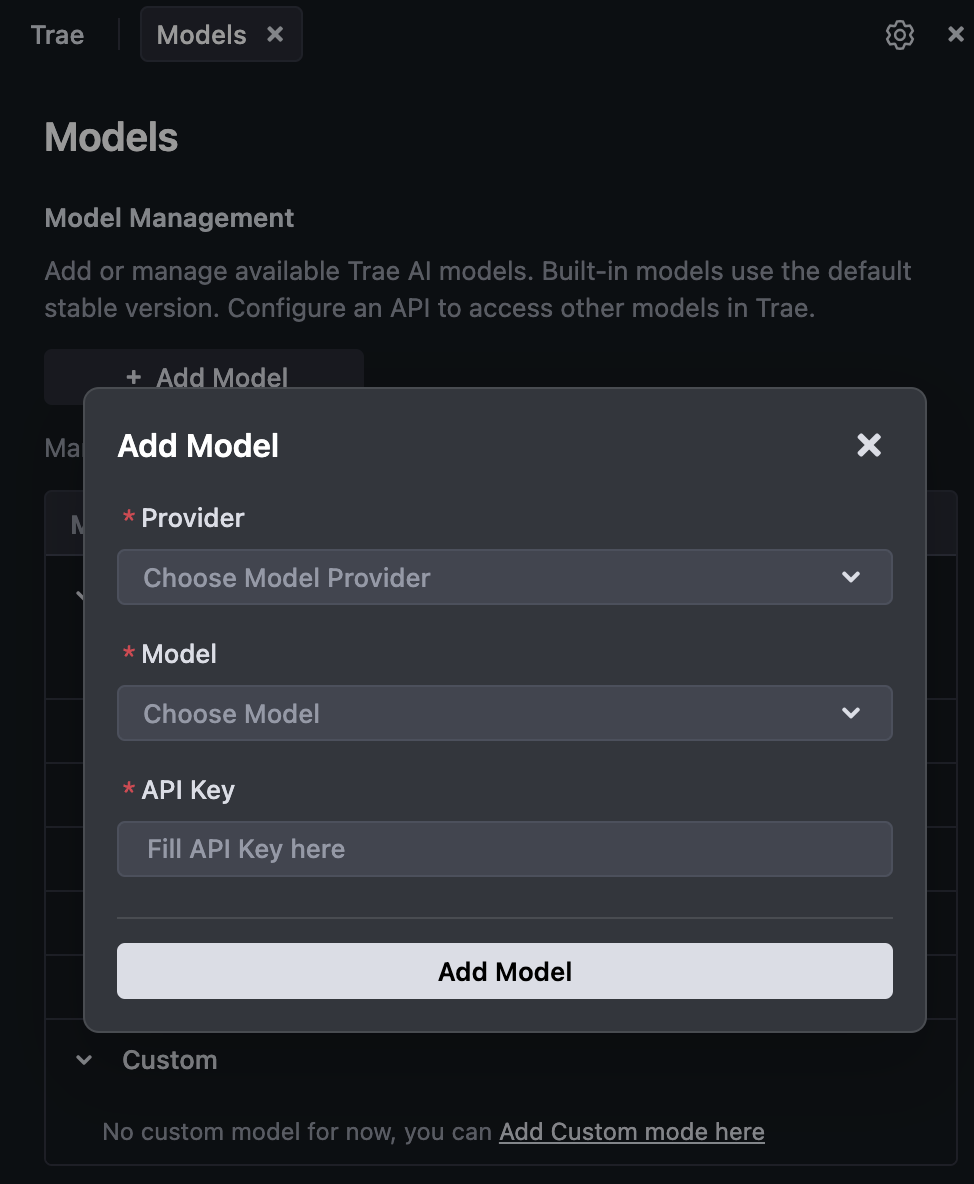
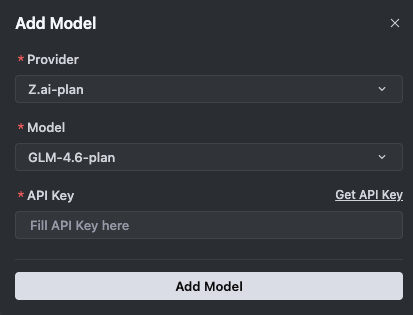
Enter Configuration Details
- Provider: Select Z.ai-plan
- Model:
GLM-4.7-plan - API Key: Enter your Z.AI API Key
Step 3: Get Started with TRAE + GLM
- Select your GLM-4.7-plan model in TRAE.
- Ask for help with tasks such as feature implementation, code generation, refactoring, and debugging.
- Use inline suggestions and agentic actions to accelerate your workflow.
FAQ
Using Z.ai vs Z.ai-plan
- Z.ai-plan: For GLM Coding Plan subscribers. Routes via Coding API with plan quota. Use model
GLM-4.7. - Z.ai: For general API usage with standard pricing and balance deduction. Use models like
GLM-4.7.
Connection Fails When Adding Model
- Verify your Z.AI API Key is correct and active.
- Confirm your subscription status for the GLM Coding Plan if using Z.ai-plan.
- Check network connectivity and try again. If errors persist, review the error message shown in the Add Model dialog.
Resources
- TRAE Website: trae.ai
- Z.AI API Keys: z.ai/manage-apikey/apikey-list
- GLM Coding Plan: z.ai/subscribe