

Complete guide to integrating Z.AI Coding Plan with OpenClaw AI assistantOpenClaw is a personal AI assistant that runs on your own devices and connects to various messaging platforms. It can be configured to use Z.AI’s GLM models through the Z.AI Coding Plan.
Step 1: Installing and Configuring OpenClaw
1
Get API Key
- Access Z.AI Open Platform, Register or Login.
- Individual Plan users (including trial card recipients) can create an API Key under Personal Coding Plan > Plan Overview; Team Plan members can create one under Team Coding Plan > My Plan.
- Make sure you have subscribed to the GLM Coding Plan.
2
Install OpenClaw
For detailed installation guide, please refer to the official documentation
- Installer Script (Recommended)
- Global Install (Manual)
Prerequisites:The easiest way to install OpenClaw is using the official installer script:macOS/Linux:Windows (PowerShell):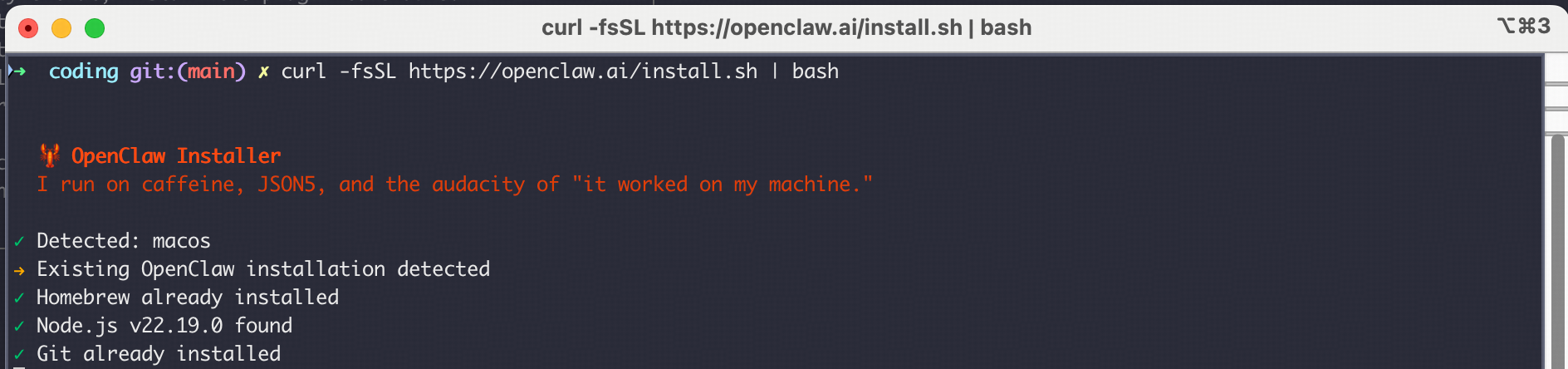
3
Setup the OpenClaw
After running the installation commands above, the configuration process will start automatically. If it doesn’t start, you can run the following command to begin configuration:If you have already initialized before, you can also run
openclaw config and select model configuration.Start to Config:I understand this is powerful and inherently risky. Continue?| Choose ●YesOnboarding mode| Choose ●Quick StartModel/auth provider| Choose ●Z.AI
4
Configure Z.AI Provider
After selecting Z.AI as the Model/auth provider, and then choose the
Then you will be prompted to enter your API Key. Paste your Z.AI API Key and press Enter.
Note: The models currently supported in the coding plan are
Coding-Plan-Global Then you will be prompted to enter your API Key. Paste your Z.AI API Key and press Enter.
Note: The models currently supported in the coding plan are
GLM-5.3, GLM-5.3-Flash. Please do not select other models to avoid unexpected charges.5
Complete Setup
Continue with the remaining OpenClaw feature configuration.
Select channel| Choose and configure what you need.Configure skills| Choose and install what you need.- Finish setup
6
Interact with bot
After setup, the cli will ask you 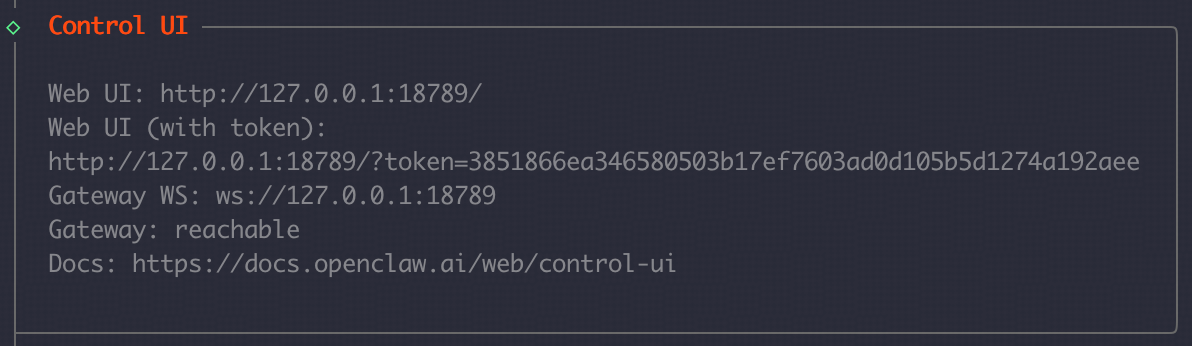
How do you want to hatch your bot?- Choose ●
Hatch in TUI (recommended)
- For Web UI, you can access it by opening the
Web UI (with token)link shown in the terminal.
7
After install
Verify everything is working:
For detailed configuration guide, please refer to the official documentation
Step 2: Switching to the Latest GLM Model
For users who are currently using OpenClaw and cannot switch to the latest GLM model through the provider model selection method, after completing the previous zai provider setup, refer to the configuration below to switch to the latest GLM modelAdd the GLM model you want to use (e.g.,
glm-5.2) to the models.providers.zai.models array in the ~/.openclaw/openclaw.json file. Add it after the last model: Note to add a comma in the JSON format array
agents.defaults.model.primary
models.providers.zai.modelssection:
agents.defaults.modelsection:
- agents.defaults.models section:
openclaw gateway restart, and you can directly use the glm-5.2 model!
Execute openclaw tui in the terminal to enter the conversation and you can see that we are using the glm-5.2 model.
Advanced Configuration
Model Failover
Configure model failover to ensure reliability:.openclaw/openclaw.json
Skills With ClawHub
A skill is just a folder with a SKILL.md file. If you want to add new capabilities to your OpenClaw agent, ClawHub is the easiest way to find and install skills.
Install the clawhub
Manage the Skill
Search for skillsPlugins
A plugin is just a small code module that extends OpenClaw with extra features (commands, tools, and Gateway RPC).See what’s already loaded:
Common Issues
-
API Key Authentication
- Ensure your Z.AI API key is valid and has the GLM Coding Plan
- Check that the API key is properly set in the environment
-
Model Availability
- Verify that the GLM model is available in your region
- Check the model name format
-
Connection Issues
- Ensure the OpenClaw gateway is running
- Check network connectivity to Z.AI endpoints
Resources
- OpenClaw Documentation: docs.openclaw.ai
- OpenClaw GitHub: github.com/openclaw/openclaw
- Z.AI Developer Docs: docs.z.ai
- Community Skills: awesome-openclaw-skills