

Except in Claude Code, pasting an image directly into the client cannot call this MCP Server, as the client will by default transcode the image and call the model interface directly.
The best practice is to place the image in a local directory and invoke the MCP Server by specifying the image name or path in the conversation.
For example:
The best practice is to place the image in a local directory and invoke the MCP Server by specifying the image name or path in the conversation.
For example:
What does demo.png describe?Features
Image Analysis
Supports intelligent analysis and content understanding of multiple image formats, giving your AI Agent visual capabilities
Video Understanding
Supports visual understanding of both local and remote videos
Easy Integration
One-click installation, quick integration with Claude Code and other MCP-compatible clients
Supported Tools
This server implements the Model Context Protocol and can be used with any MCP-compatible client. Currently provides the following tools:ui_to_artifact- Turn UI screenshots into code, prompts, specs, or descriptions.extract_text_from_screenshot- OCR screenshots for code, terminals, docs, and general text.diagnose_error_screenshot- Analyze error snapshots and propose actionable fixes.understand_technical_diagram- Interpret architecture, flow, UML, ER, and system diagrams.analyze_data_visualization- Read charts and dashboards to surface insights and trends.ui_diff_check- Compare two UI shots to flag visual or implementation drift.image_analysis- General-purpose image understanding when other tools don’t fit.video_analysis- Inspect videos (local/remote ≤8 MB; MP4/MOV/M4V) to describe scenes, moments, and entities.
Environment Variable Configuration
Detailed Configuration
Installation and Usage
Quick Start
1
Get API Key
Get your API Key from Personal Coding Plan > Plan Overview (Individual Plan) or Team Coding Plan > My Plan (Team Plan)
2
Install MCP Server
Prerequisites: Node.js >= v22.0.0
According to the client you’re using, choose the corresponding installation method from the options below.
According to the client you’re using, choose the corresponding installation method from the options below.
Supported Clients
- Claude Desktop
- Cline (VS Code)
- OpenCode
- Crush
- Roo Code, Kilo Code and Other MCP Clients
Method A: One-click Installation CommandBe sure to replace If you forgot to replace the API Key, you need to uninstall the old MCP Server before re-executing the installation command:Method B: Manual ConfigurationEdit Claude Desktop’s configuration file
Be sure to replace
your_api_key with the API Key you obtained..claude.json mcpServers content: Be sure to replace
your_api_key with the API Key you obtained.Usage Example
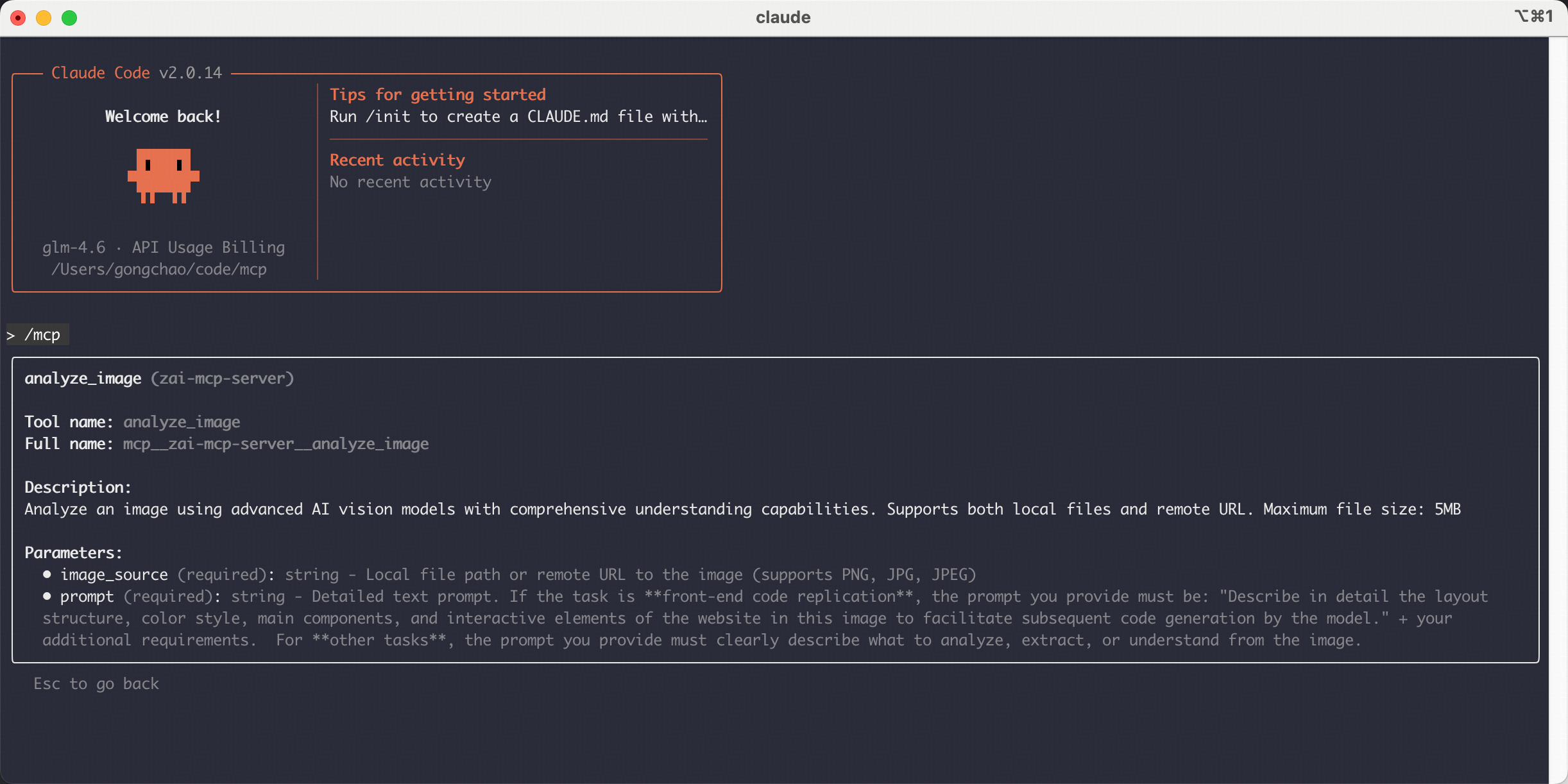
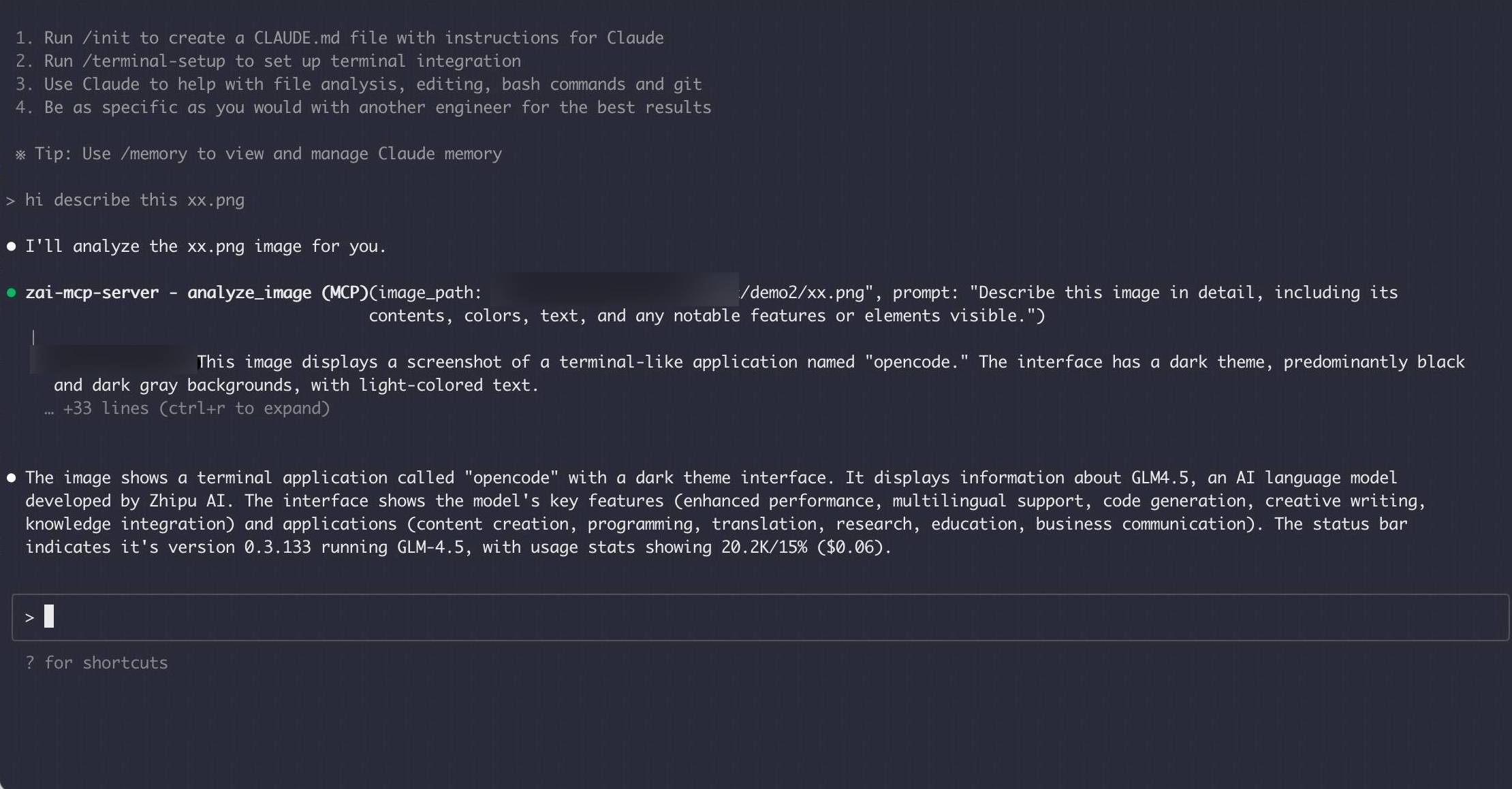
Through the previous step of installing the Vision MCP server to the client, you can directly use MCP in your Coding client.For example, in Claude Code, inputting
hi describe this xx.png in the conversation, the MCP Server will process the image and return the description result. (The prerequisite is that you have the image in your current directory)
Troubleshooting
Run the following command in your local terminal to verify if it can be installed locally, to troubleshoot environment, permission, and other issues:- If installed successfully, it indicates that the environment is correct, and the issue may be with the client configuration. Please check the client’s MCP configuration.
- If installation fails, please troubleshoot based on the error message. It is recommended to paste the error message to a large model for analysis and resolution.
Connection Closed
Connection Closed
Issue: Mcp server connection closedSolutions:
- Check whether Node.js 22 or a newer version is installed locally.
- Run
node -vandnpx -vto verify that the execution environment is available. - Check the environment variable
Z_AI_API_KEYis configured correctly.
Invalid API Key
Invalid API Key
Issue: Receiving invalid API Key errorSolutions:
- Confirm the API Key is correctly copied
- Check if the API Key is activated
- Confirm the selected platform (
Z_AI_MODE) matches the API Key - Check if the API Key has sufficient balance
Connection Timeout
Connection Timeout
Issue: MCP server connection timeoutSolutions:
- Check network connection
- Confirm firewall settings
- Increase timeout settings