

Qoder ( /ˈkoʊdər/ ) is an agentic coding platform designed for real software development. It seamlessly integrates enhanced context engineering with intelligent agents to gain a comprehensive understanding of your codebase and systematically tackles software development tasks. Qoder is available in three forms — the Qoder IDE, the Qoder JetBrains plugin, and the Qoder CLI, all of which support the GLM Coding Plan. This guide uses the Qoder IDE as an example. For setup in the JetBrains plugin or CLI, see the official docs linked under “Resources”.Documentation Index
Fetch the complete documentation index at: https://docs.z.ai/llms.txt
Use this file to discover all available pages before exploring further.
Custom models in Qoder support the Coding Plan only — the general API billing mode is not supported. This feature is available for Pro Trial, Pro, Pro+, and Ultra users; Free and Teams plans are not supported.
Step 1: Install Qoder
Download and Install
- Go to the Qoder website and download the form that fits your workflow: Qoder IDE, Qoder JetBrains plugin, or Qoder CLI.
First Launch and Sign In
- In the top-right corner of the Qoder IDE, click the user icon — or use the keyboard shortcut
⌘ ⇧ ,(macOS) /Ctrl Shift ,(Windows) — and choose Sign In.
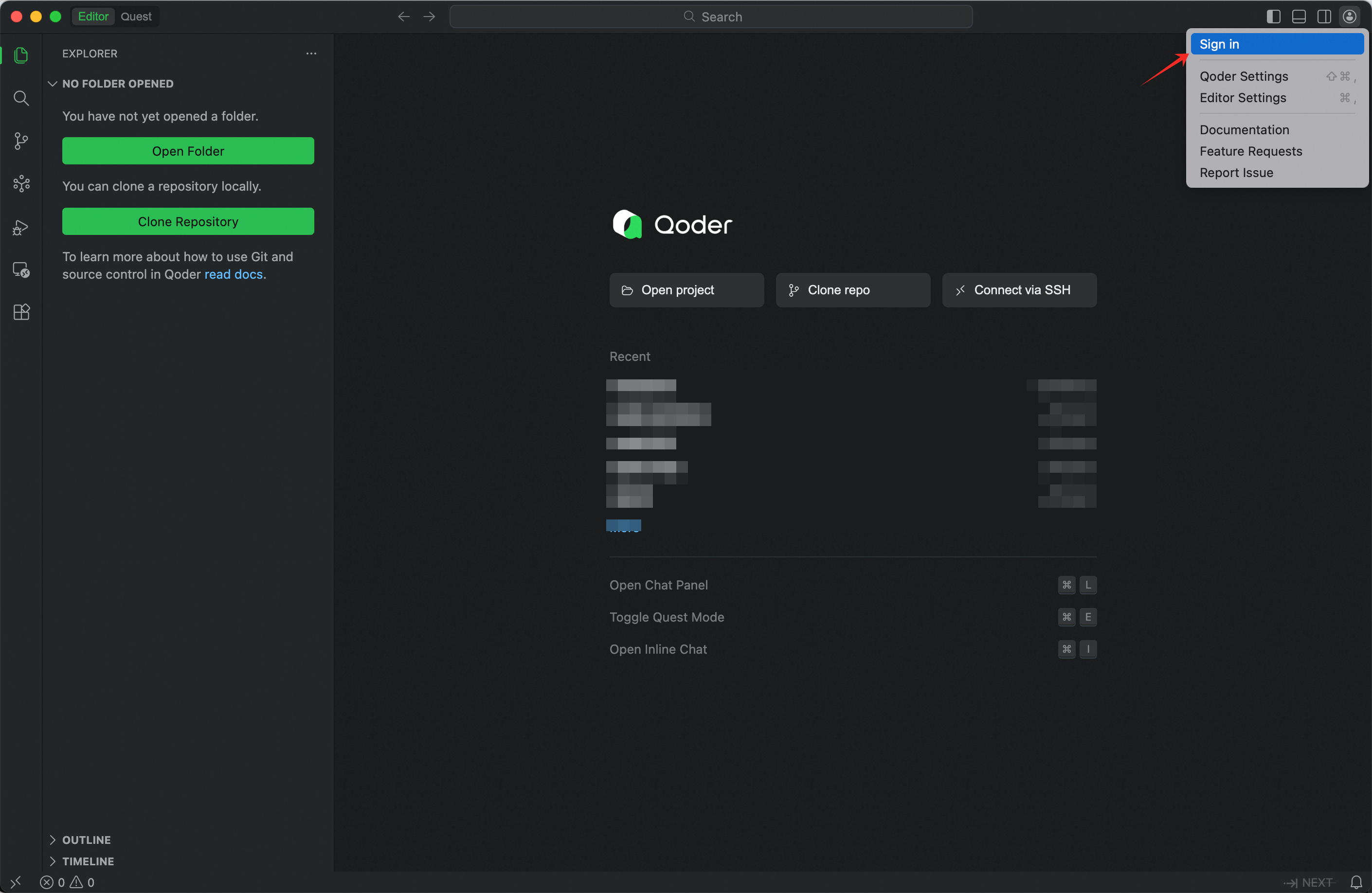
- In the page that opens, click Sign Up at the bottom and complete registration, or sign up directly with your Google or GitHub account.
- Return to the Qoder IDE. You can now use all features.
Step 2: Configure GLM in Qoder
Use your Z.AI API Key to add the GLM Coding Plan model in Qoder IDE.Open Models Settings
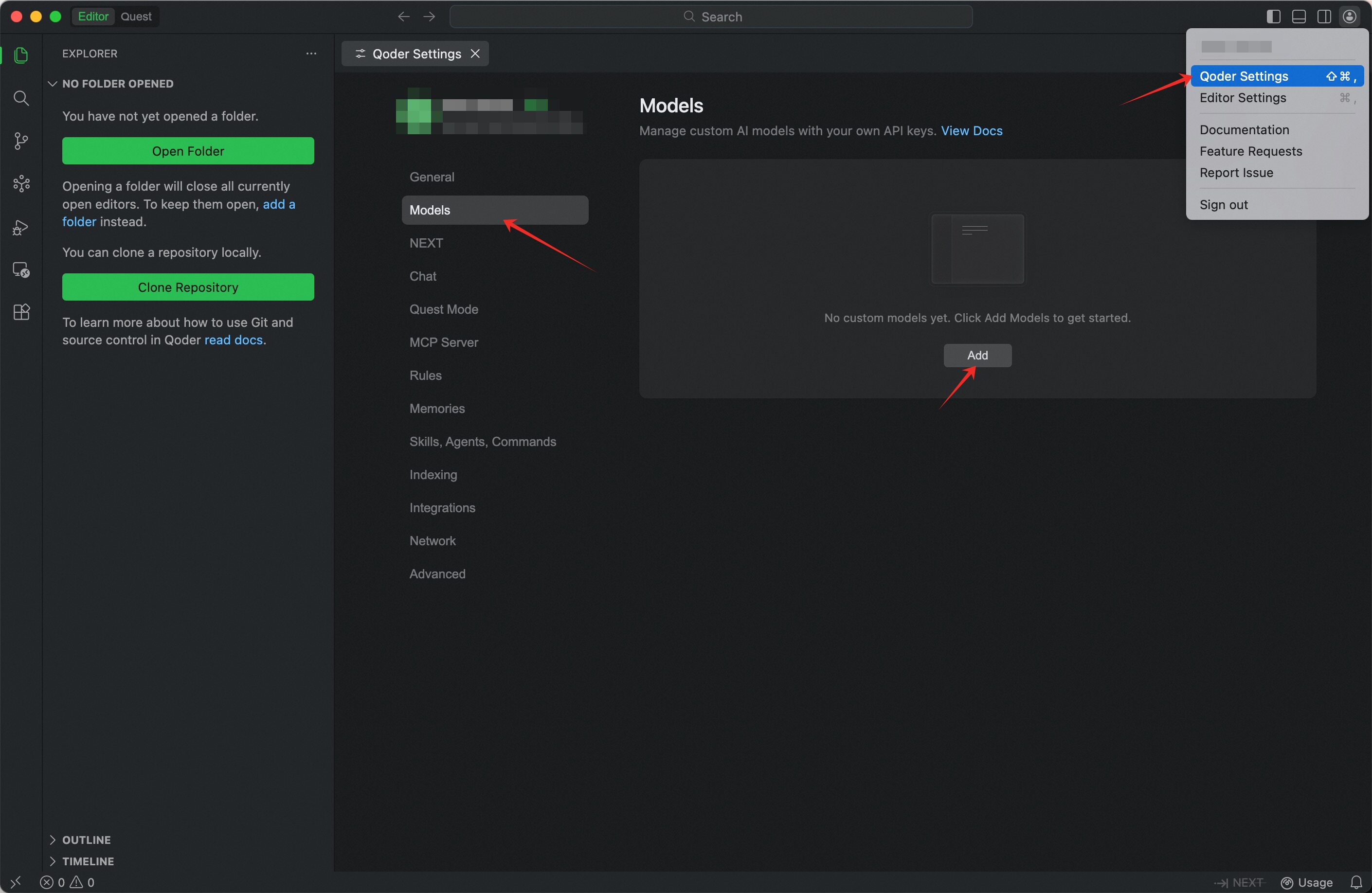
- Click the Qoder Settings icon at the top-right of the Qoder window, then choose Models from the sidebar.
Enter Configuration Details
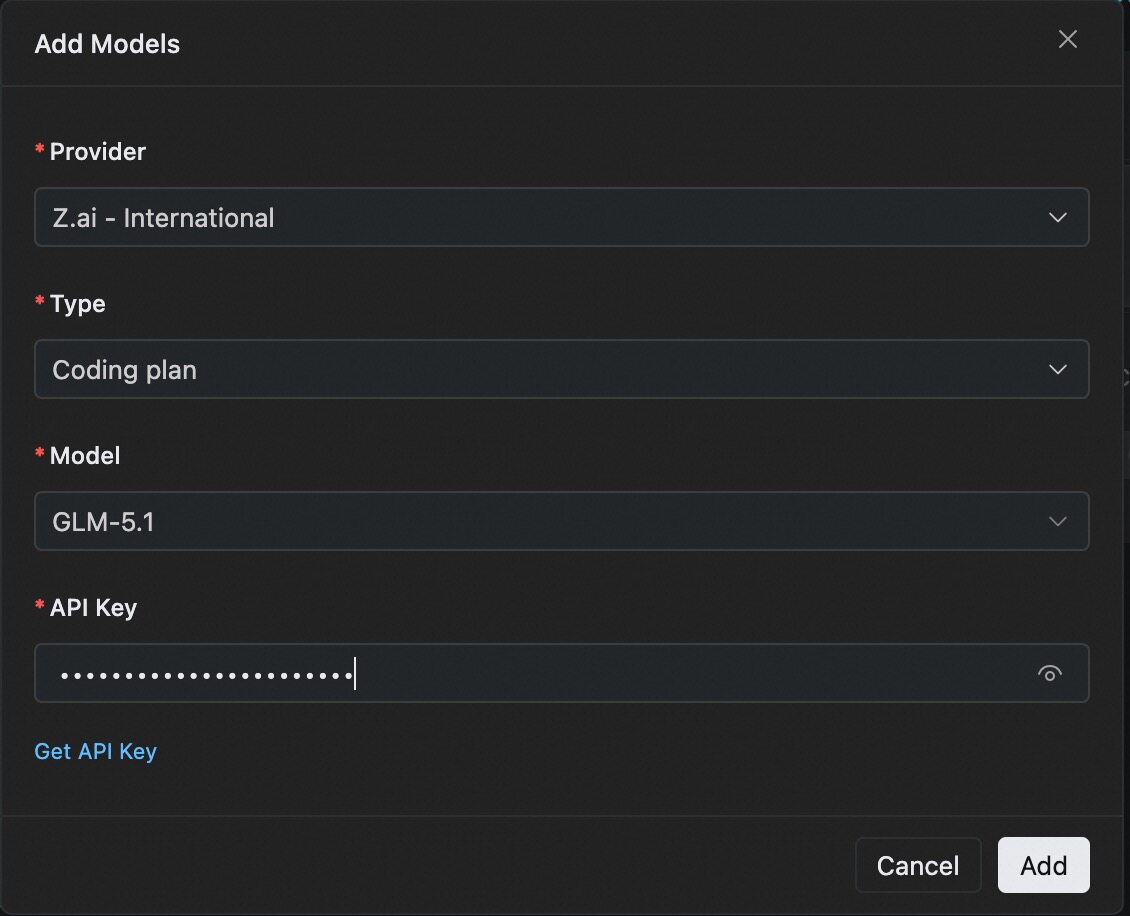
- Provider: Select Z.ai - International or Z.ai - China
- Type: Select Coding plan
- Model: Choose the model you want to use from the dropdown
- API Key: Enter your Z.AI API Key
Step 3: Get Started with Qoder + GLM
Once configured, switch to your newly added GLM model from the model selector at the bottom of the Chat panel — or in Quest mode — in Qoder IDE, and start chatting. You can then use GLM for feature implementation, code generation, refactoring, debugging, and multi-step agentic coding tasks.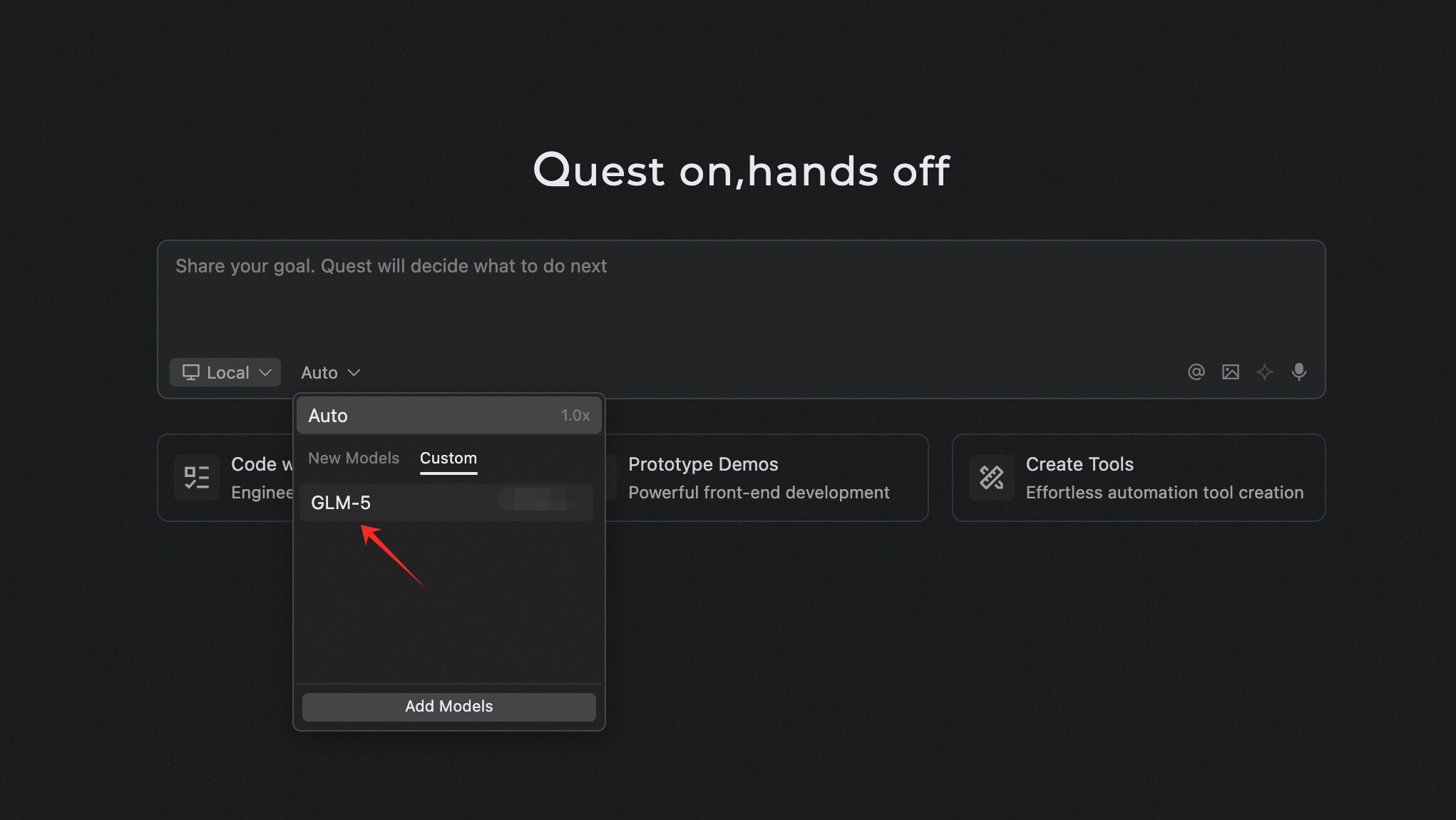
FAQ
Connection Fails When Adding Model
- Verify that your Z.AI API Key is correct and active.
- Confirm that you have subscribed to the GLM Coding Plan.
- Check network connectivity and try again. If errors persist, review the error message shown in the Add Model dialog.
Coding Plan worked in Qoder before, but after a while I can no longer switch to a Coding Plan model and the configuration is not editable. Why?
- Cause: New Qoder users get a free two-week Qoder Pro Trial. After it expires, the account automatically reverts to the free version, which no longer supports Coding Plan.
- Solution: Upgrade to Qoder Pro Trial, Pro, Pro+, or Ultra.