> ## Documentation Index
> Fetch the complete documentation index at: https://docs.z.ai/llms.txt
> Use this file to discover all available pages before exploring further.
# How to Switch Models
**GLM-5.2 Now Live**
The GLM Coding Plan now supports the latest GLM-5.2 model for all users (Max, Pro, and Lite), and you can switch between models within your preferred Coding Agent.
## Before You Start
This is a model-switching guide for existing GLM Coding Plan users—not an onboarding tutorial. Make sure you have already:
1. **Active GLM Coding Plan subscription** and a valid **Z.AI API key**.
2. **Configured the correct endpoint for your tool:**
* **Claude Code / Goose** (Anthropic-compatible): `https://api.z.ai/api/anthropic`
* **Other OpenAI-compatible tools**: `https://api.z.ai/api/coding/paas/v4`
3. **Verified that your tool can successfully call an existing GLM model** (for example, `glm-4.7`). If a basic call fails, please resolve that first.
## Switching Models in Claude Code
### Step 1: Update the default configuration
* Method 1: In the terminal, run `vim ~/.claude/settings.json` to open and edit the file. When you're done, press Esc, type `:wq`, and save your changes.
* Method 2: In Finder, choose Go → Go to Folder, then enter `~/.claude/settings.json` to locate and edit the configuration file.
The user-level Claude Code settings file is located at:
`%USERPROFILE%\.claude\settings.json`
To create or open it in PowerShell:
```powershell theme={null}
New-Item -ItemType Directory -Force "$env:USERPROFILE\.claude"
notepad "$env:USERPROFILE\.claude\settings.json"
```
If you use Git Bash or WSL, the path resolution may differ. Make sure the file is read by the same Claude Code installation you launch.
The user-level Claude Code settings file is located at:
`~/.claude/settings.json`
To create or open it:
```bash theme={null}
mkdir -p ~/.claude
${EDITOR:-nano} ~/.claude/settings.json
```
If you are using WSL alongside native Windows Claude Code, the configuration file locations may differ. Make sure you edit the file used by the Claude Code installation you actually launch.
To use GLM-5.2, add or replace the following environment variables in `settings.json`. **Do not replace the entire file** if it already contains other fields —only add or update the keys shown below.
```json theme={null}
{
"env": {
"CLAUDE_CODE_AUTO_COMPACT_WINDOW": "1000000",
"ANTHROPIC_DEFAULT_HAIKU_MODEL": "glm-4.5-air",
"ANTHROPIC_DEFAULT_SONNET_MODEL": "glm-5.2[1m]",
"ANTHROPIC_DEFAULT_OPUS_MODEL": "glm-5.2[1m]"
}
}
```
#### Enable 1M Context
To enable GLM 1M context, add the `[1m]` suffix to the model name (e.g., `glm-5.2[1m]`) and configure the compression window size parameter `"CLAUDE_CODE_AUTO_COMPACT_WINDOW": "1000000"`.
If Claude Code reports that the model with the `[1m]` suffix does not exist, please upgrade Claude Code to the latest version and try again.
#### Switch Effort (Thinking Intensity)
In a Claude Code session, type the `/effort` command to switch thinking intensity.
After switching, Claude Code maps the selected effort to GLM-5.2's actual effort as follows:
| Claude Code selected effort | GLM-5.2 actual mapped effort |
| --------------------------- | ---------------------------- |
| low, medium, high (default) | high |
| xhigh, max, ultracode | max |
For coding tasks, we recommend switching to `max` effort for deeper reasoning and more stable complex task performance.
### Step 2: Confirm that the model has been switched
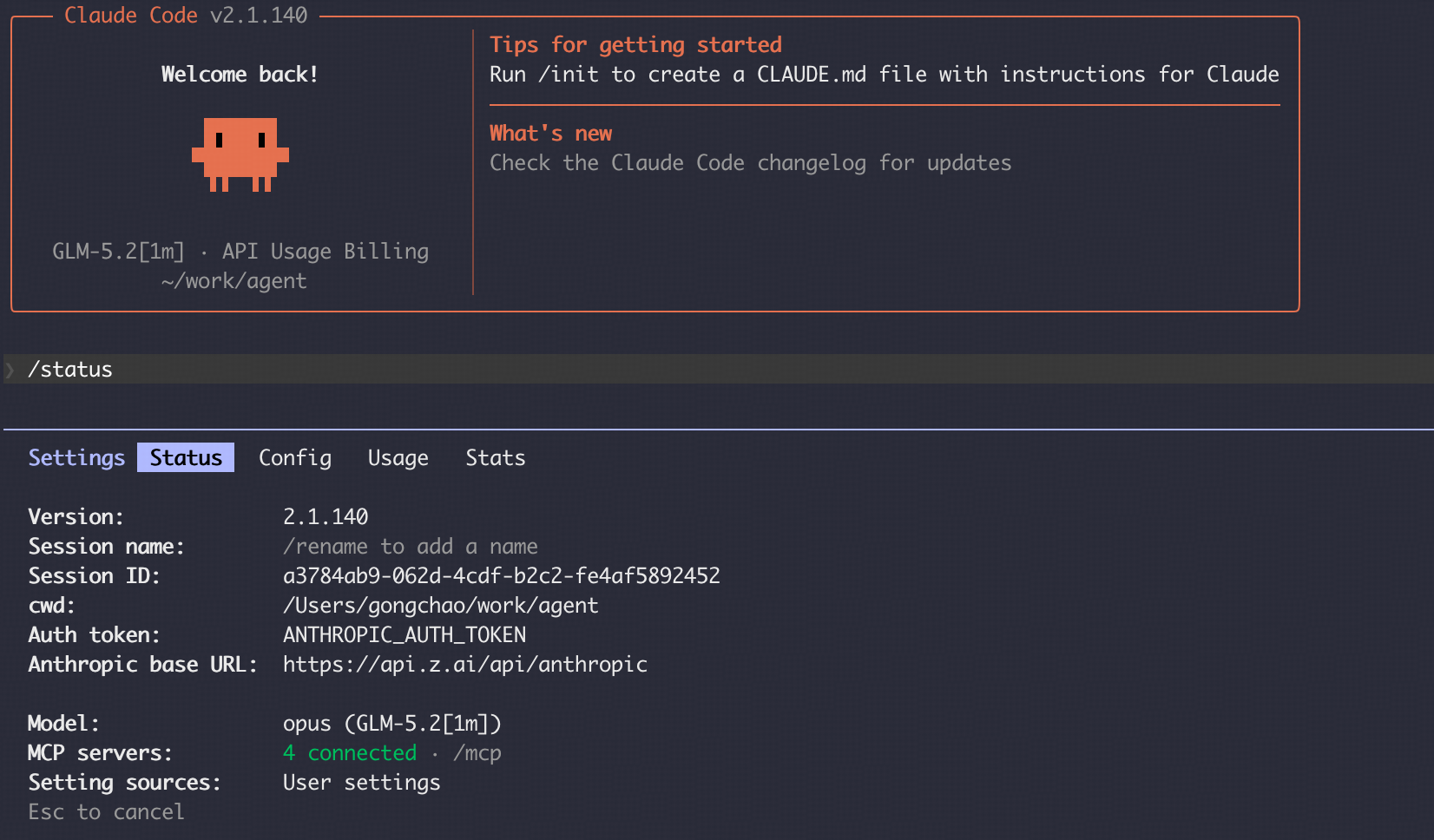
Open a terminal and run `claude`, then type `/status`. Verify:
1. **Settings source** shows your `~/.claude/settings.json`.
2. **Model** shows `glm-5.2` or `glm-5.2[1m]`.
## Switching Models in Other Tools
This currently only works with coding agents that support custom model configuration. If your agent tool does not allow custom model settings, you will need to wait for official support in a future release.
### Using Cline as an example:
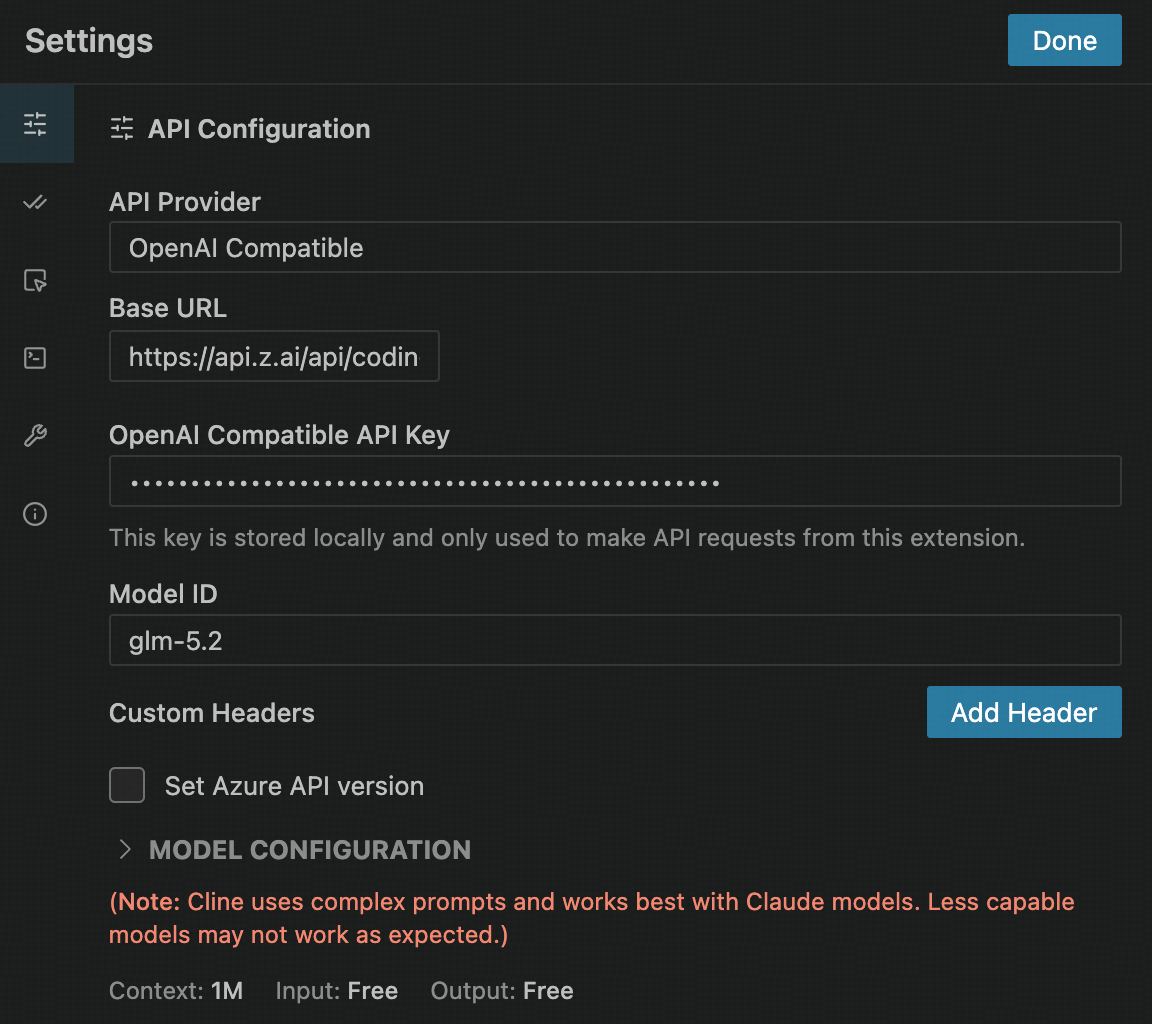
Please use the following settings:
* API Provider:Select OpenAI Compatible
* Base URL:Enter [https://api.z.ai/api/coding/paas/v4](https://api.z.ai/api/coding/paas/v4)
* API Key:Enter your Z.AI API key
* Model:Choose Custom Model and enter the model name, such as glm-5.2
* Other settings:
* Uncheck Support Images
* Set Context Window Size to 1000000
* Adjust temperature and any other parameters based on your task requirements